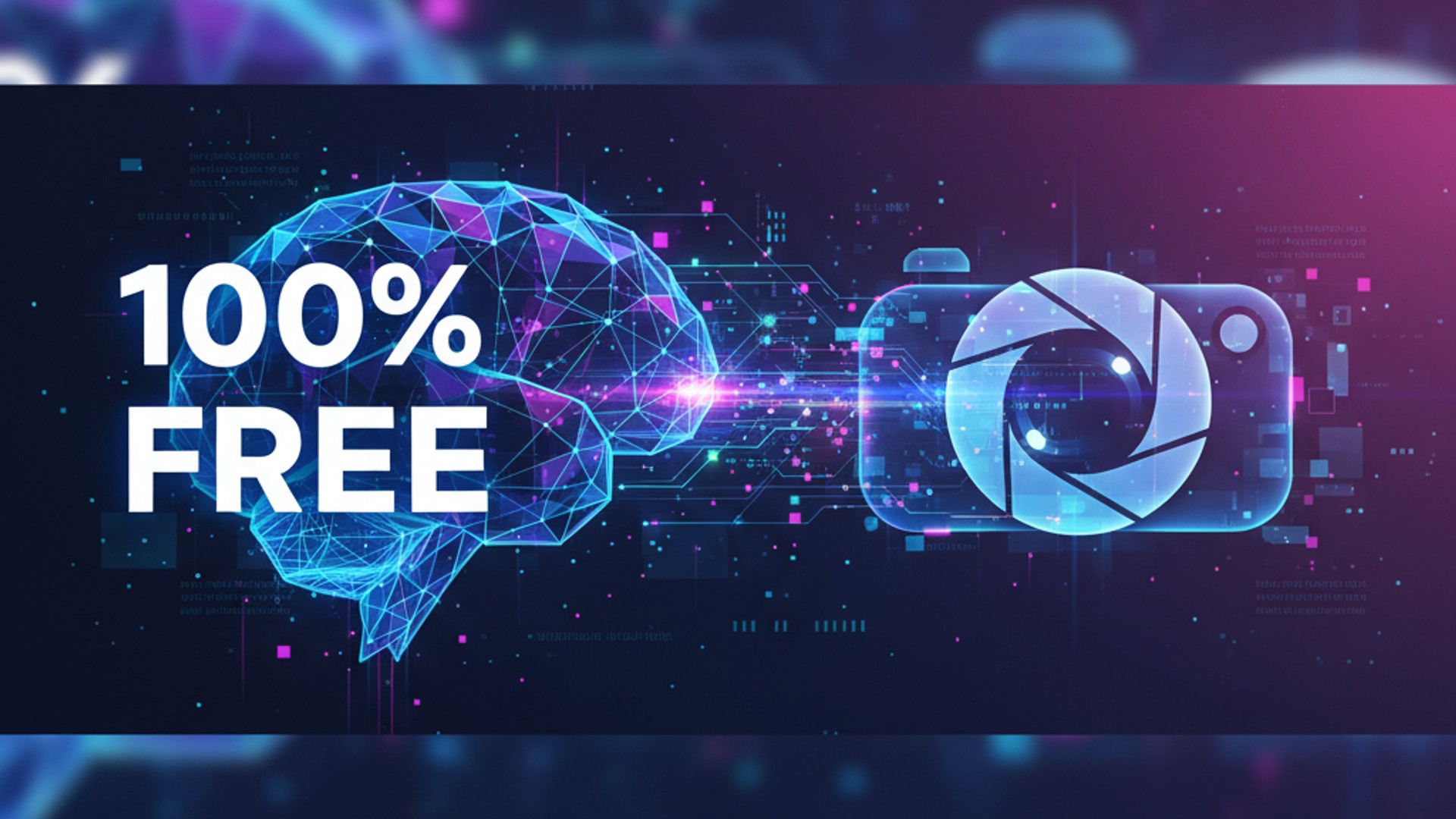
Discover Which Photo Editor Is 100% Free - Selfyfy Insights
Searching for 'which photo editor is 100% free?' We've got the definitive list of truly free options. Dive in and enhance your visuals today with Selfyfy!
Discover Which Photo Editor Is 100% Free - Selfyfy Insights
In a world brimming with visual content, the ability to edit photos is no longer a luxury but a necessity for everyone from social media enthusiasts to small business owners. However, the cost of premium photo editing software can often be a significant barrier. This leads many to search for a common, crucial query: which photo editor is 100% free?
The quest for a truly free photo editor can feel like navigating a maze of "freemium" models, limited trials, and hidden subscriptions. It's a common misconception that powerful editing capabilities are always locked behind a paywall. But the truth is, a vibrant ecosystem of genuinely free, feature-rich photo editors exists, ready to empower your creative vision without demanding a single penny. At Selfyfy, we understand the importance of accessible tools for content creation, and we're here to guide you through the best options available.
This comprehensive guide will not only answer your pressing question but also delve into the nuances of what "100% free" truly entails in the realm of photo editing. We'll explore robust desktop applications, convenient online platforms, and even touch upon how AI tools like Selfyfy can complement these free editors to elevate your content creation beyond traditional boundaries. Whether you're a budding photographer, a digital artist, a marketer, or simply someone looking to touch up personal photos, prepare to discover the tools that will empower you without emptying your wallet.
Understanding "100% Free" - What Does It Really Mean?
Before we dive into our definitive list, it's crucial to clarify what we mean by "100% free." In the software world, "free" often comes with caveats. You'll encounter several models:
- Freemium: These tools offer a basic set of features for free, but essential or advanced functionalities are reserved for paid subscriptions. Think of apps that let you apply simple filters but require payment for layers, advanced adjustments, or high-resolution exports.
- Free Trials: These give you full access to a premium product for a limited time (e.g., 7 or 30 days), after which you must pay to continue using it. While useful for testing, they are not "100% free" in the long run.
- Open Source Software (OSS): This is the gold standard for truly free tools. Open-source software means its source code is publicly available, allowing anyone to inspect, modify, and distribute it. These projects are often developed by communities of volunteers and are entirely free to use, without hidden costs or feature restrictions.
- Ad-Supported Free: Some online tools offer full functionality but display advertisements to generate revenue. While technically "free," the ads can sometimes be intrusive.
- Web-Based Free Tiers: Many online services offer a free tier that might include basic editing capabilities, but with limitations like file size, number of exports, or watermarks.
For this guide, we will focus primarily on Open Source Software and robust web-based platforms that offer significant, unrestricted functionality for free, ensuring you can get real work done without ever having to pay.
The Definitive List - Which Photo Editor Is 100% Free?
When you ask "which photo editor is 100% free?", these are the names that consistently rise to the top, offering powerful features without any hidden costs.
GIMP - The Open-Source Powerhouse for Desktop
GIMP (GNU Image Manipulation Program) is arguably the most well-known and powerful truly free photo editor available. It's an open-source raster graphics editor used for image manipulation, image editing, free-form drawing, transcoding between different image file formats, and more specialized tasks. Often hailed as the "free Photoshop alternative," GIMP offers an extensive feature set that can satisfy professionals and hobbyists alike.
- Pros:
- Comprehensive Feature Set: Supports layers, masks, advanced filters, effects, color correction, brushes, and more.
- Extensible: Thousands of plugins and scripts are available, expanding its capabilities.
- Cross-Platform: Available for Windows, macOS, and Linux.
- Robust Community Support: A large, active community provides tutorials, forums, and ongoing development.
- No Cost, Ever: Truly 100% free with no premium features or subscriptions.
- Cons:
- Steep Learning Curve: Its interface can feel overwhelming for beginners, especially those coming from simpler editors.
- Interface Differences: Not identical to Photoshop, which can be a hurdle for users accustomed to Adobe products.
- No Native CMYK Support: While plugins exist, it's primarily an RGB editor, which can be an issue for professional print work.
- Use Cases: Ideal for graphic design, web design, photo retouching, image manipulation, and digital art.
- Learn More: Explore its features and download it from the GIMP official website.
Photopea - Online Photoshop Alternative in Your Browser
If you're looking for a powerful editor that runs directly in your web browser, Photopea is an astonishing achievement. It's a free, online raster and vector graphics editor that supports a wide range of file formats, including PSD (Photoshop), AI (Illustrator), XD (Adobe XD), CDR (CorelDRAW), XCF (GIMP), Sketch, PDF, RAW, and more. It aims to be compatible with Adobe Photoshop's interface and functionality, making it incredibly intuitive for anyone familiar with Photoshop.
- Pros:
- Browser-Based: No installation required, accessible from any device with an internet connection.
- High Compatibility: Opens and saves files in many professional formats, including PSD with layers.
- Extensive Features: Layers, masks, smart objects, blending modes, filters, text tools, vector tools – almost everything you'd expect from a desktop editor.
- Familiar Interface: Highly resembles Photoshop, making it easy for experienced users to adapt.
- Cons:
- Performance Dependent on Internet/Hardware: Can be slower on older machines or with poor internet connections.
- Ad-Supported: The free version displays ads, which can be removed with a paid subscription (but core functionality remains free).
- No Offline Mode (natively): Requires an internet connection to use.
- Use Cases: Quick edits, social media graphics, web mockups, basic photo retouching, opening and converting various file types.
- Access It: Start editing immediately at the Photopea official website.
Krita - For Digital Artists and Photo Enhancement
While often associated with digital painting and illustration, Krita is another fantastic open-source tool that also excels at photo manipulation and enhancement. It's built by artists for artists, offering a unique blend of drawing and editing capabilities that can be incredibly powerful for certain photography workflows.
- Pros:
- Exceptional Brushes & Painting Tools: Perfect for artistic photo effects, digital painting over photos, or detailed retouching.
- Advanced Layer Management: Supports complex layer styles, masks, and blending options.
- Tablet Support: Optimized for pen tablets, offering excellent pressure sensitivity.
- Cross-Platform: Available on Windows, macOS, Linux, and even Android (beta).
- Truly Free: 100% open source with no hidden costs.
- Cons:
- Less Focus on Pure Photo Editing: While capable, its primary design intent is illustration, so some photo-specific features (like non-destructive RAW editing, extensive lens corrections) might be less prominent than in dedicated photo editors.
- Learning Curve: Can be intimidating for users unfamiliar with digital art software.
- Use Cases: Digital painting, comic creation, concept art, artistic photo manipulation, detailed retouching that requires drawing skills.
- Get Started: Download Krita from the Krita official website.
Darktable - Advanced RAW Editing for Free
For photographers who shoot in RAW format and demand professional-level editing capabilities without the subscription fee, Darktable is a game-changer. It's an open-source photography workflow application and RAW developer, often seen as a free alternative to Adobe Lightroom. Darktable provides non-destructive editing, meaning your original RAW files remain untouched while you apply a wide array of adjustments.
- Pros:
- Non-Destructive RAW Editing: Comprehensive tools for color correction, exposure, tone mapping, noise reduction, and more.
- Extensive Module System: A vast array of modules (similar to Lightroom's panels) for detailed control over every aspect of an image.
- Asset Management: Organize your photo library with tags, color labels, and ratings.
- Tethered Shooting: Control your camera directly from your computer.
- Cross-Platform: Available for Linux, macOS, and Windows.
- Community-Driven: Constantly evolving with new features and improvements.
- Cons:
- Steep Learning Curve: Its professional-grade interface and numerous modules can be intimidating for beginners.
- Performance: Can be resource-intensive, especially with large RAW files.
- Use Cases: Professional RAW photo processing, detailed color grading, photo organization for serious photographers.
- Download It: Find Darktable and its documentation at the Darktable official website.
Other Notable Mentions (with caveats for "100% Free")
- Google Photos: While primarily a photo management and backup service, Google Photos offers basic editing tools like cropping, rotating, color adjustments, and filters for free. Its strength lies in cloud storage and easy sharing, but it's not a full-fledged editor.
- Paint.NET (Windows Only): A simple yet powerful raster graphics editor for Windows. It features layers, unlimited undo, special effects, and a wide variety of useful tools. It's faster and simpler than GIMP but less feature-rich.
- Fotor / Canva Free Tiers: These web-based tools offer robust free tiers for quick edits and graphic design, respectively. However, many advanced features, templates, and stock assets are locked behind premium subscriptions, so they aren't "100% free" for all functionality, but their free offerings are quite generous for basic tasks.
Beyond Basic Editing - How AI Elevates Your Workflow (and Selfyfy's Role)
While traditional free photo editors are indispensable for fundamental image manipulation, the world of content creation is rapidly evolving with Artificial Intelligence. AI doesn't just complement these editors; it opens up entirely new possibilities, taking your visuals from good to extraordinary.
At Selfyfy, we're at the forefront of this revolution, offering a suite of AI-powered tools that work seamlessly alongside your chosen free photo editor. Imagine a scenario where you've used GIMP to meticulously retouch a product photo. Now, what if you could automatically generate dozens of variations for your product catalog, or even create a promotional video based on that single image? This is where Selfyfy comes in.
Our platform allows you to:
- Generate stunning images from text prompts: Instead of endlessly searching for stock photos or setting up elaborate shoots, you can use our AI image generator to create unique visuals tailored to your exact needs. This is perfect for generating backgrounds, conceptual images, or even elements to composite into your photos.
- Enhance and upscale existing photos: Have a great photo from a free editor but it's low resolution? Our image upscaler can increase its size and detail, making it suitable for larger prints or higher-quality digital display.
- Create dynamic product showcases: Our product promotion tool can transform your edited product images into engaging visual content, perfect for e-commerce. You can generate multiple angles, backgrounds, or even use AI to place your product in lifestyle scenes.
- Generate diverse faces and characters: For content creators needing unique avatars or character designs, our AI face generator provides an endless stream of possibilities. This can be particularly useful for mockups or incorporating diverse representation into your visual narratives.
- Produce engaging videos with AI: After perfecting your still images, elevate your storytelling with our AI video generator. Turn static images into dynamic video content for social media, ads, or presentations, all with minimal effort. This answers the "do AI generated videos make money" question with a resounding yes – if done right.
These AI capabilities don't replace free photo editors; they empower them. You can use GIMP or Photopea for precise pixel-level editing and then leverage Selfyfy to scale your content creation, automate repetitive tasks, and unlock creative avenues that were once impossible or prohibitively expensive. It's about working smarter, not harder. You can also dive deeper into how this works by checking out our related blog post on beyond filters: how selfyfy unlocks your hyper-personalized ai digital twin.
Choosing the Right Free Photo Editor for Your Needs
With several excellent options available, how do you decide which photo editor is 100% free and best suited for you? Consider these factors:
-
Your Skill Level:
- Beginner: Photopea (online, familiar interface) or the free tiers of tools like Canva/Fotor are good starting points for quick edits.
- Intermediate: GIMP offers a comprehensive learning experience and professional results.
- Advanced/Pro Photographer: Darktable for RAW processing, or GIMP for detailed pixel manipulation.
-
Operating System:
- Windows, macOS, Linux: GIMP, Krita, and Darktable are cross-platform.
- Web-based (any OS): Photopea is universally accessible.
- Windows only (simpler): Paint.NET.
-
Specific Features Needed:
- General Editing & Graphic Design: GIMP, Photopea.
- RAW Photo Processing: Darktable.
- Digital Painting & Artistic Effects: Krita.
- Quick Online Edits & Conversions: Photopea.
-
Online vs. Desktop:
- Desktop Software (GIMP, Krita, Darktable): Offers full power, works offline, better performance with large files, requires installation and system resources.
- Online Software (Photopea): Accessible anywhere, no installation, dependent on internet connection and browser performance, can be ad-supported.
-
Community & Support: Open-source projects like GIMP, Krita, and Darktable boast strong communities that provide tutorials, forums, and active development, ensuring long-term viability and resources for learning. Many external tutorials can also guide you, such as those found on TechCrunch discussing software alternatives.
By assessing these points, you can align the capabilities of these free editors with your personal workflow and creative ambitions.
Maximizing Your Free Photo Editing Experience - Tips and Tricks
Getting the most out of your 100% free photo editor requires a bit of dedication and smart practices. Here are some tips:
- Watch Tutorials: YouTube is a treasure trove of tutorials for GIMP, Krita, and Darktable. Many official websites also provide extensive documentation.
- Learn Keyboard Shortcuts: Mastering shortcuts can dramatically speed up your workflow, making complex tasks feel more fluid.
- Join Communities: Engage with user forums for GIMP, Krita, or Darktable. You can ask questions, share your work, and learn from experienced users.
- Experiment Fearlessly: Since these tools are free, you have nothing to lose by trying out every filter, tool, and adjustment. Don't be afraid to break things – you can always undo or restart.
- Understand Your File Formats: Learn when to use JPEG, PNG, TIFF, or native RAW files. For example, editing JPEGs in GIMP is fine, but for professional non-destructive work, Darktable's RAW capabilities are superior.
- Back Up Your Originals: Always work on copies of your photos, especially if you're not using a non-destructive editor like Darktable.
Integrating AI for Enhanced Creativity
Once you're comfortable with your chosen free photo editor, consider how AI can expand your horizons. This synergy is powerful:
- Start with AI, Refine with Editor: Use an AI image generator to create a base image, then import it into GIMP or Photopea for fine-tuning, adding text, or compositing.
- Editor for Perfection, AI for Scale: Edit a perfect hero image in Krita, then use Selfyfy's product promotion tool to create hundreds of social media variations or dynamic video ads for Instagram stories.
- Overcoming Limitations: If your free editor struggles with noise reduction or sharpening on a specific photo, consider running it through Selfyfy's AI image upscaler or specialized AI tools before your final edits.
- Generating Diverse Content: Need a unique avatar for a project? Use Selfyfy's free face generator and then touch it up in Photopea.
- Transforming Edits into Narratives: After crafting stunning visuals, leverage Selfyfy's AI video generator to bring them to life with motion, music, and voiceovers. This is a game-changer for marketers and storytellers. For more on how to monetize these skills, read our blog on how to earn money using ai generated content like video or image.
The combination of powerful 100% free photo editors and innovative AI platforms like Selfyfy represents the future of accessible, high-quality content creation.
Frequently Asked Questions About Free Photo Editors
Is GIMP really 100% free forever?
Yes, GIMP is an open-source software project. This means its source code is freely available, and the software itself is completely free to use, distribute, and modify without any subscription fees or feature paywalls, now or in the future.
Can I use Photopea offline?
No, Photopea is a web-based application, meaning it requires an active internet connection to function. While it runs in your browser, it doesn't have an offline mode like desktop software.
Are free photo editors safe to download and use?
Generally, yes, especially the well-known open-source projects like GIMP, Krita, and Darktable. Always download them from their official websites to avoid altered versions or malware. Web-based editors like Photopea are also safe to use via your browser. Using reputable sources like OpenAI or Hugging Face for AI tools also ensures safety and reliability.
Do free photo editors offer advanced features comparable to paid software?
Many do! GIMP offers nearly all the features of Photoshop for raster graphics, while Darktable provides professional-grade RAW photo editing similar to Lightroom. Photopea mimics Photoshop's interface and functionality impressively for an online tool. While there might be minor differences in workflow or specific niche features, these free options are incredibly capable for most users, including professionals.
What's the catch with "free" photo editors?
For truly 100% free open-source software like GIMP, Krita, and Darktable, there's no catch. They are developed by communities. For web-based tools like Photopea, the "catch" is often ad-supported interfaces (which can be removed with a paid subscription) or, in other cases, limitations on advanced features or exports if it's a freemium model. Our list focuses on tools with robust, unrestricted free functionality.
Conclusion
The search for "which photo editor is 100% free?" doesn't have to end in frustration. As we've explored, a diverse and powerful selection of genuinely free photo editors exists, ready to meet the demands of nearly any content creator. From the robust desktop capabilities of GIMP and Krita to the professional RAW processing of Darktable and the incredible browser-based convenience of Photopea, you have numerous choices that promise full functionality without a price tag.
These tools empower you to perform a vast array of editing tasks, from simple touch-ups to complex graphic design and artistic endeavors. And as the digital landscape continues to evolve, remember that combining these free editors with cutting-edge AI platforms like Selfyfy can unlock unparalleled creative potential. Perfect your images with your chosen free editor, then let Selfyfy's AI tools amplify your efforts, generating diverse content, upscaling visuals, and even creating dynamic videos from your static masterpieces.
Ready to revolutionize your content creation workflow? Explore the power of truly free photo editing, and when you're ready to take your visuals to the next level with artificial intelligence, remember Selfyfy is here to help you generate, enhance, and transform your ideas into stunning realities. Visit Selfyfy.com today to discover how our AI solutions can complement your free photo editing journey!
Related Topics You Might Also Like
- AI Generated Media Legality Understanding The Law
- From Selfies to AI-Selves - Crafting Your Evolving Digital Identity with Generative Visuals
- How to Earn Money Using AI Generated Content Like Video or Image
- Do AI Generated Videos Make Money - Selfyfy Insights
Tags
Selfyfy AI
AI Technology Expert
Expert in artificial intelligence and machine learning, sharing insights about the future of AI technology.
Reading Progress
Estimated 10 minutes remaining
Related Articles
Understanding Neural Networks
Dive deep into how AI learns to create images...
The Future of AI Art
Exploring the next generation of creative AI...